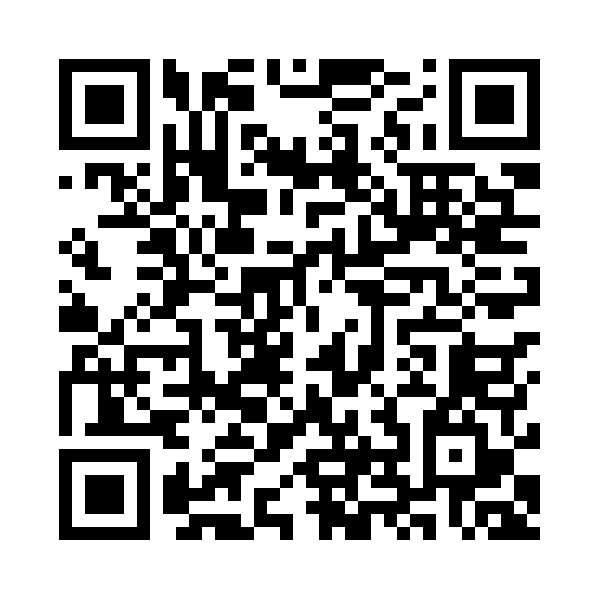
 Scan to open the menuWorking QR for the demo page
See how guests could open your menu
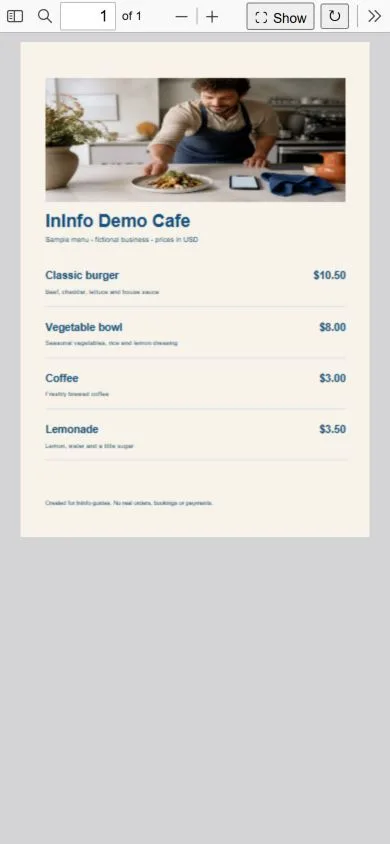
The Nook cafe page in this article was built with InInfo. Try it as a guest: follow the link or scan the QR, then tap “View file”. After reading the menu, you can return to the map and contact buttons. The create-page button lets you use this template in your own InInfo account and replace the fictional cafe details with yours.
Open the example website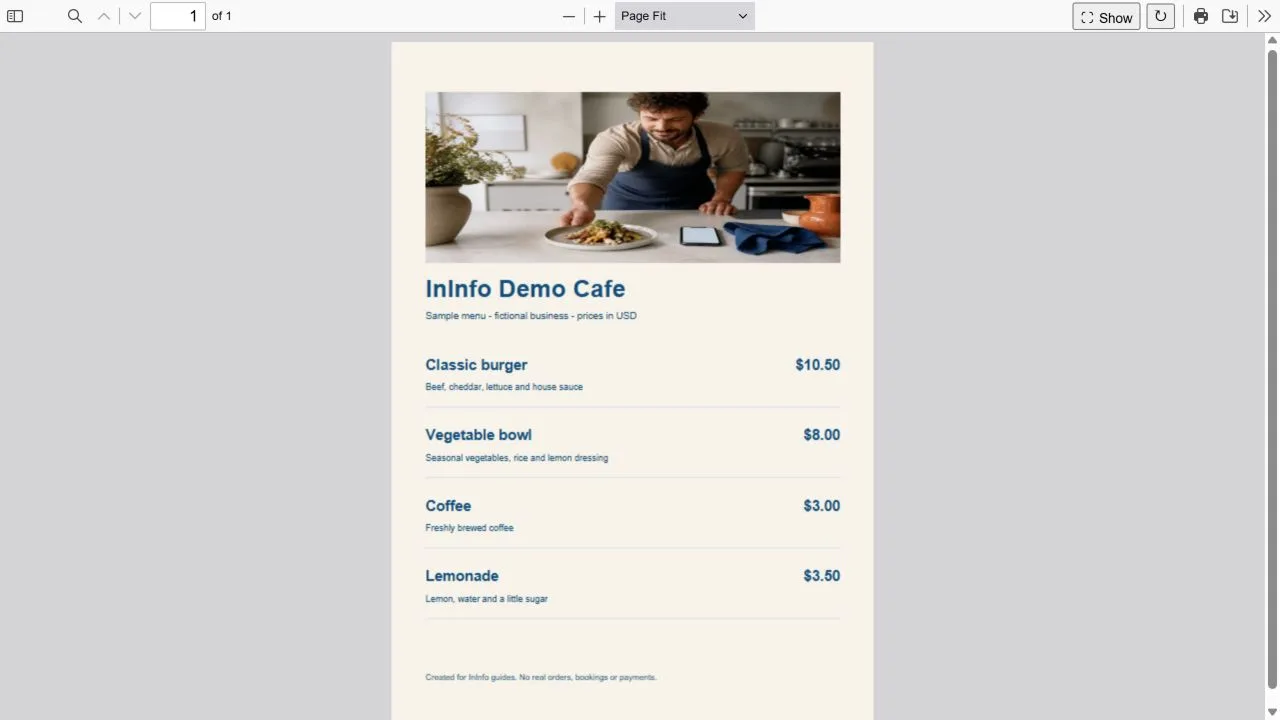
Your menu keeps its familiar design
The InInfo template already includes a PDF menu block. First enter your cafe name and contacts, choose an address and save the page. After the first save you can upload your own file in that block. Once the PDF is uploaded, save and publish the changes again.
InInfo displays the document in the browser, preserving its design. Guests can read the menu, zoom in and return to the cafe page. Saving a separate PDF to the phone is optional; a download button is available for anyone who wants a copy.
Room for your cafe address and contacts beside the dishes
In the InInfo builder you can place a map, opening hours and contact blocks beside the menu. Our template has room for them already: enter your address and replace the demonstration details. The page will be useful both to someone sitting at a table and to someone planning a first visit.
The Contact block lets you add a phone number or WhatsApp and make the buttons float. They stay at the edge of the screen as visitors scroll, so after exploring the menu they can easily ask about a table or get in touch.
Your page can change along with your menu
Seasonal dishes arrive, prices change and new photos are taken. When the next PDF is ready, replace the old file on your page and publish the changes. Keep the page address and the QR codes on your tables will continue to open it with the new menu.
The same applies to links you have sent to guests or posted on social media. Someone returning to the familiar address will see the current version. We explain the update process in a separate article linked below.
When you want to show individual dishes in more detail
You may eventually want larger photos of favourite dishes, more about ingredients, and separate sections for breakfasts or desserts. InInfo has a catalog for that: each dish gets a card with an image, description and price. You can also connect a basket for sending an order.
Cards are filled in separately; a PDF does not turn into them automatically. You can come back to this later and make your first site with what you already have: a finished menu, your cafe name and a way for guests to contact you.
Try putting your own cafe menu here
Use the button below to open the cafe template in the InInfo builder after signing up or logging in. You get your own draft with a ready-made design, where you can add the cafe name, map, contacts and PDF. Replace all demonstration details with your own before publishing.
- Open the template using the button below. Sign up or log in.
- Enter your cafe name, contacts and chosen page address. Save and publish: file upload becomes available after the first save.
- Upload your PDF in the file block, then save and publish again.
- Open the link on a phone, tap “View file” and check the menu. Scan the QR before printing.
The editor and publishing are free. No coding required.
Before you start
Is it free?
Registration, creating a page and publishing are available without payment or a bank card. Pages have an InInfo credit at the bottom. Check your account for its current features and limits.
What happens when I click the button?
After sign-up or login, a new draft opens from the example. It is not published automatically. Replace the fictional business details and contacts with your own, then save the page.
Is there a PDF size limit?
The editor accepts files smaller than 20 MB. The browser downloads PDF data over the internet to display it, but you do not have to save a file to the phone. The document keeps its fixed layout; small text may need zooming.
Check before publishing
What to check before publishing
- The PDF has the current dishes and prices.
- The phone number and cafe address have been replaced with yours.
- The QR opens the cafe page, and the menu is comfortable to read on a phone.