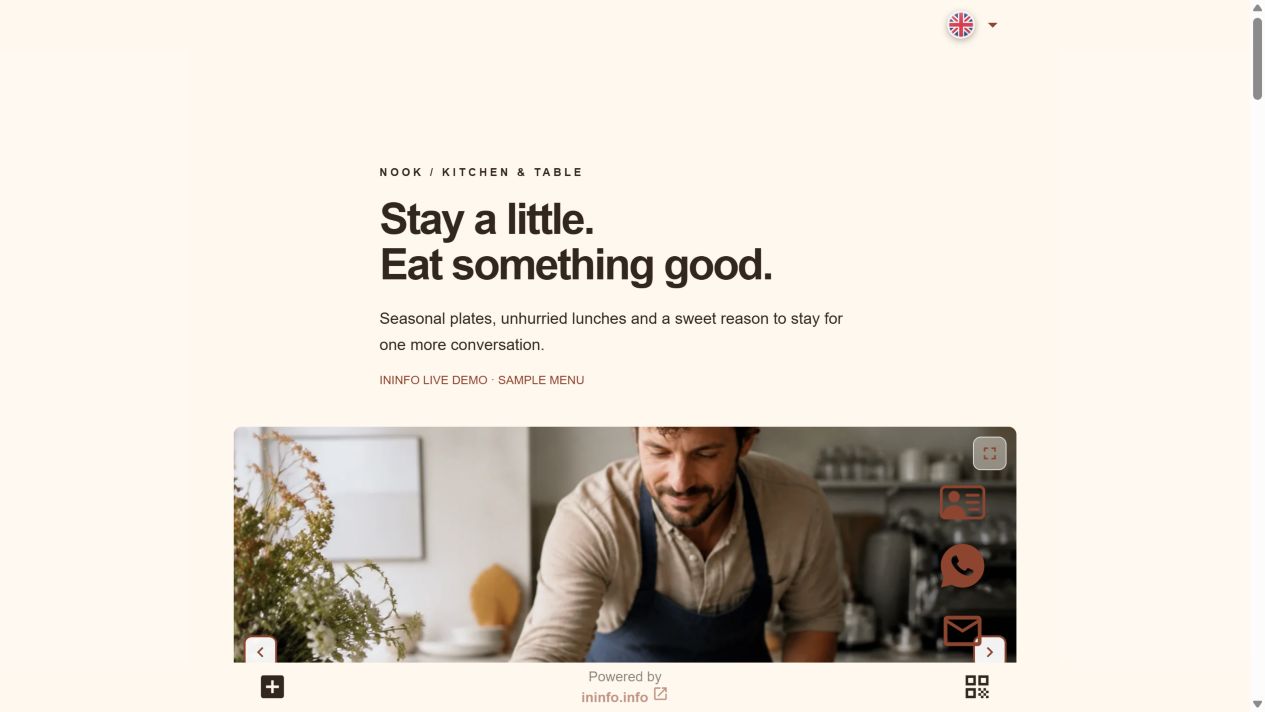
The new menu opens through the familiar QR code
Take Nook cafe from our example. Suppose its classic burger goes from $9.50 to $10.50 and the owner needs guests to see the new menu. We replaced the PDF on the cafe page without changing its address. The same QR now opens the page with the new document, available through “View file”.
Same address:
ininfo.info/ininfo-demo-nook
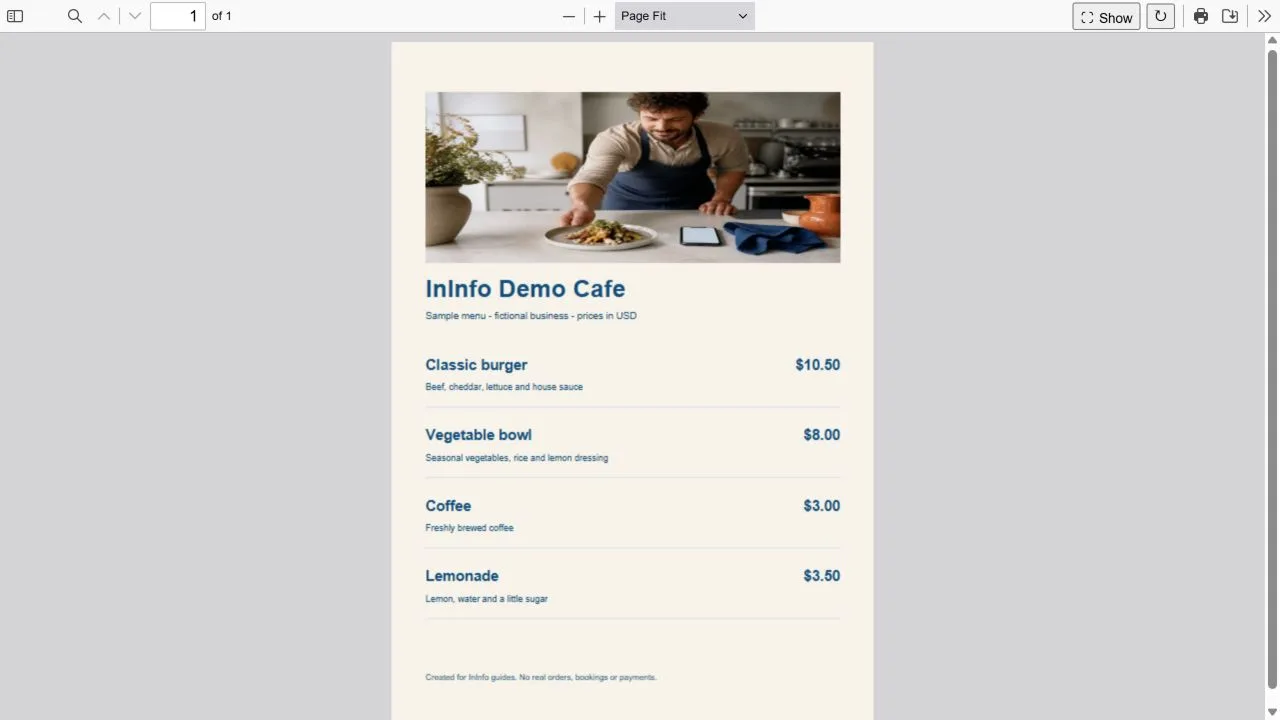
It starts with the address your QR points to
Before opening the editor, scan the printed code and check where it leads. If it opens your InInfo page, that is the page to update. A QR stores an address, so replacing the menu at that address lets guests see the new document.
If the code opens another website or points straight to an old file, updating depends on whether you control the content there. InInfo cannot redirect that code: first find out where the old menu is hosted and whether you can replace it.
Replacing a menu uploaded as a single PDF
Upload the new menu in the same InInfo editor where you created the cafe page. Find it among your pages, open the menu file block and replace the old PDF. Then save and publish the changes, keeping the page address. That address is stored in the printed QR, so the codes on your tables will still open your page.
Before uploading, it is worth reading the whole document again. Opening hours, phone numbers or seasonal dishes may have changed too. This check helps you publish a version you are ready to show guests.
Updating dishes that have their own cards
If your menu uses InInfo catalog cards, open the relevant dish in the editor and change its price, description or photo. To update the burger price, simply edit its card, then save and publish the page. This is useful when small parts of the menu change often.
If your InInfo page has both dish cards and a PDF menu, update both. They are stored independently: changing a card’s price does not alter the number inside the document. Check them together so guests see the same terms whichever view they choose.
The last check happens at a cafe table
After publishing, return to the QR guests use on a table, counter or business card. Open the menu through it and find the changed dish. Seeing the new price here checks both the document and the link used to reach it.
If your browser still shows the previous PDF, refresh the page and open the file again. Remember the printed menu and staff price list too: update those separately to avoid questions about the price when someone orders.
You can now update your own cafe menu
If you already have a published page, open it in your account and make your changes. If you are still choosing how to put a menu online, use the template below: build your page, check it on a phone and then print QR codes for the tables.
You already have a menu in InInfo
- Open the page your printed QR code points to.
- Replace the file or edit the dishes. Save and publish without changing the address.
- Scan the existing code and check the updated menu.
You do not have a menu page yet
- Open the template below, sign up or log in, and enter your cafe details.
- Save the page, upload your PDF and publish again.
- Get the page QR and test it before printing. Keep this address when updating the menu later.
The editor and publishing are free. No coding required.
Before you start
Can I keep a QR code made in another service?
What matters is the address it opens. If you can update the menu there, you can keep the code. If you do not control the content at that address, InInfo cannot replace it for you.
Is it free?
Registration, creating a page and publishing are available without payment or a bank card. Pages have an InInfo credit at the bottom. Check your account for its current features and limits.
What happens when I click the button?
After sign-up or login, a new draft opens from the example. It is not published automatically. Replace the fictional business details and contacts with your own, then save the page.
What if I change the page address?
A printed QR still points to the old address. To keep using it, keep the page address unchanged.
Check before publishing
What to check before publishing
- The page keeps its original address.
- The PDF and dish cards show matching prices if you use both.
- The updated price appears when opening the menu through the old QR.