Clients want the details behind a service name
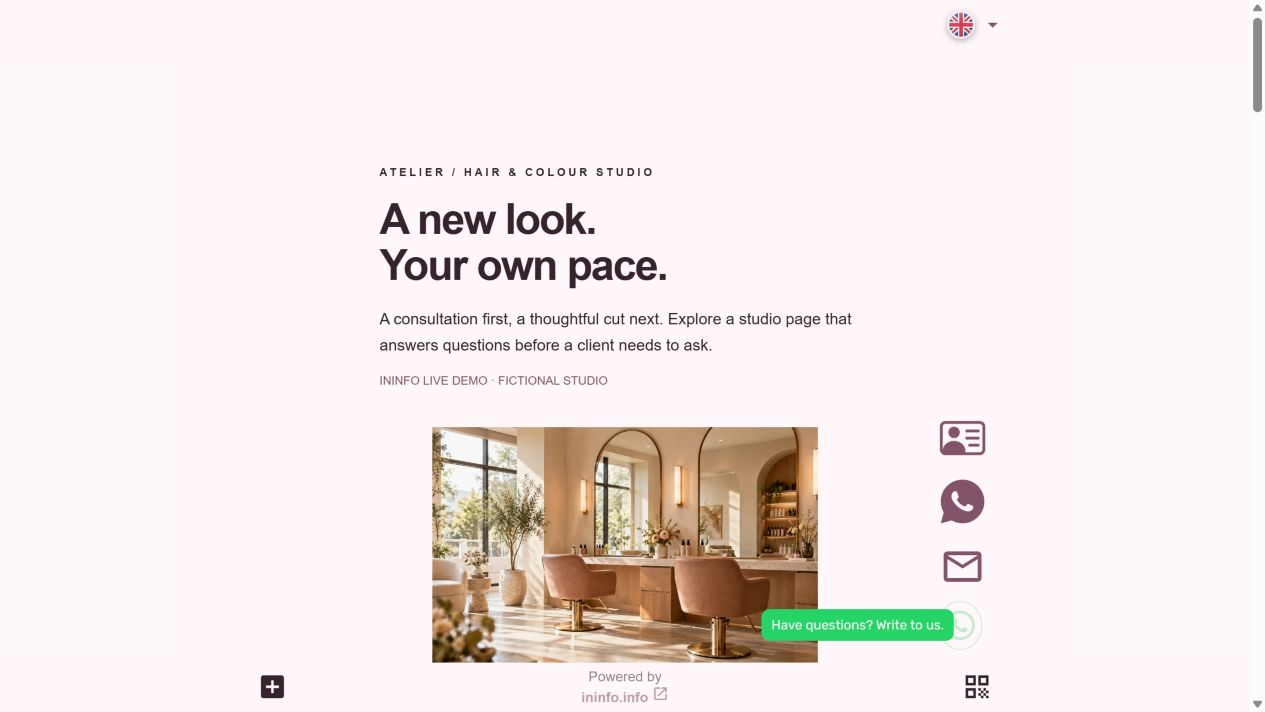
We built this Atelier salon example in InInfo using the same blocks available in the builder. See how a service card brings together a photo, price, approximate time and description. After sign-up or login, you can open a copy of the design in your account, replace the fictional salon details and prepare it for publication.
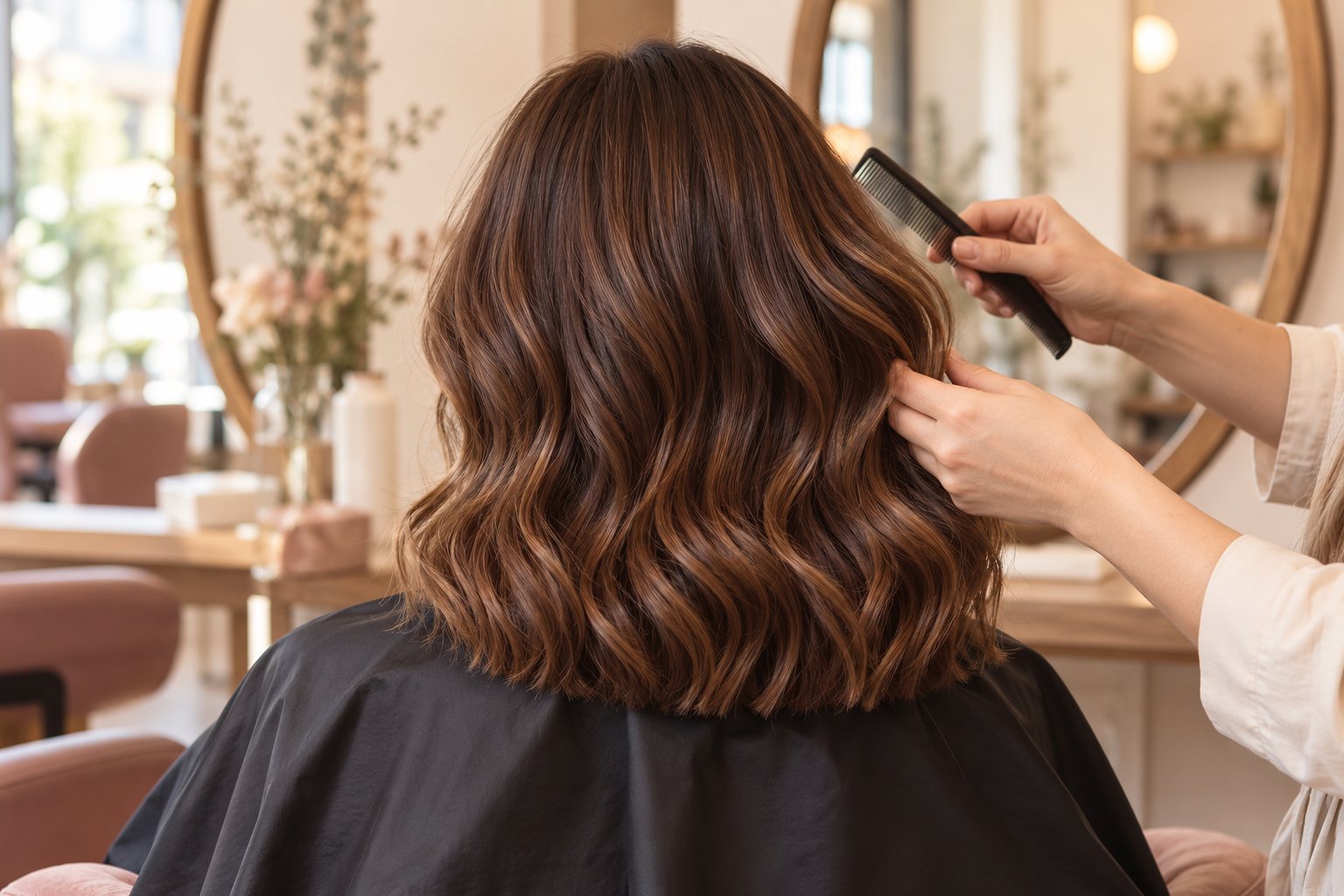
Cut and style
from $45 · 60 minutes
Consultation, wash, haircut and styling.
The price depends on hair length and complexity. Agree the final amount with your client before starting.
What helps someone choose the right service
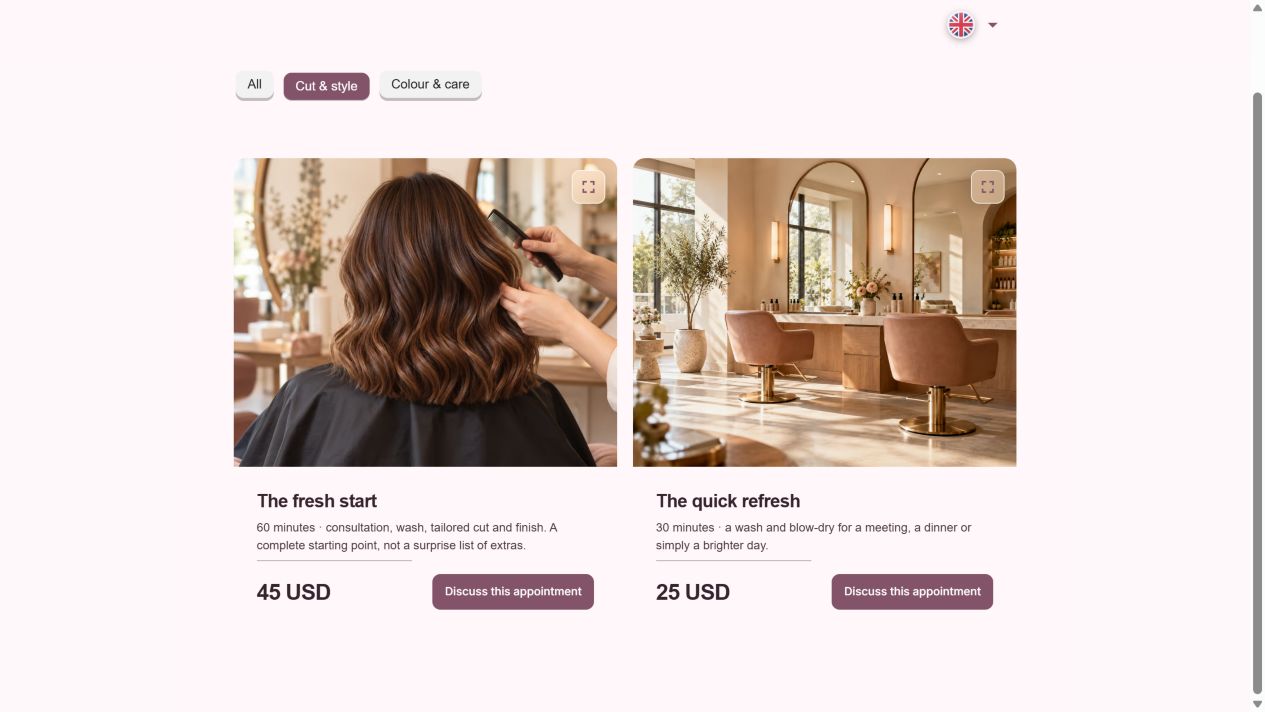
Services in the salon template are already arranged as InInfo catalog cards. Open them in the editor and enter what you offer: cuts, styling, colour or treatments. Each card has room for a photo, price and description, where you can explain how long it takes and what is included. Remove services you do not offer and add others as you fill out the page.
Where the price depends on hair length or complexity, explain how you calculate it. Before colouring, for example, a stylist might suggest a consultation to look at the hair and discuss the desired shade. You can write that explanation directly into the service description in the builder.
Photos help people picture their visit
The InInfo template has a gallery ready for your own work and salon photos. Visitors can see the cuts, shades and styling you offer, while an entrance photo helps them find you on their first visit. In the editor, change the text beside the gallery to add useful details about your work.
Page colours, background and font are also adjustable in InInfo. Keep the template design or adapt it to your salon, then check the result in the builder’s mobile preview. Before publishing, you can see how clients will read prices and view photos on their phones.
From looking at your work to asking about an appointment
In the InInfo builder, add a phone number, WhatsApp and other ways to reach you through the Contact block. Contacts in the template already float: replace them with your own before publishing so clients can reach you while browsing services and photos.
Edit the appointment form in the same builder: enter your services, keep a question about preferred times and choose the required fields. You receive the client’s preferences, contact them and confirm personally. The form does not check available hours, so the final appointment agreement is yours to make.
Sharing your salon page with future clients
Add your salon page link to your social accounts and send it when clients ask about prices or your work. Keep it in quick replies in your messenger, or put a QR on a business card or reception counter. People can return to services and photos when they have time to plan a visit.
Add new work and services as they become available. If the address stays the same, links in social posts, messages and business cards will open the updated site with current prices and fresh photos.
Let your salon’s first introduction start here
Open the template below: after sign-up or login it appears in your InInfo builder as a separate draft. The design, gallery, services, contacts and form are ready. Start with your salon name and photos, replace prices and contact details, then preview and publish.
- Open the template and sign up or log in.
- Enter the salon name and replace photos with yours. Remove services you do not offer.
- Add prices, durations and descriptions. Replace every phone number and link with your own.
- Choose an address, save and publish. Check the page on a phone and send a test request if you use the form.
The editor and publishing are free. No coding required.
Before you start
Is it free?
Registration, creating a page and publishing are available without payment or a bank card. Pages have an InInfo credit at the bottom. Check your account for its current features and limits.
What happens when I click the button?
After sign-up or login, a new draft opens from the example. It is not published automatically. Replace the fictional business details and contacts with your own, then save the page.
Can I leave out the form?
Yes. Keep a phone number, WhatsApp or another contact method and remove the form blocks. Take appointments as usual and use the site as a price list with photos.
Are appointments confirmed automatically?
No. The form collects preferences. You confirm the exact time and terms personally.
Check before publishing
What to check before publishing
- Each service explains its price, duration and terms.
- Photos and contacts have been replaced with yours.
- You have checked how clients can message you and how requests reach you.