See the photographer website you can build in InInfo
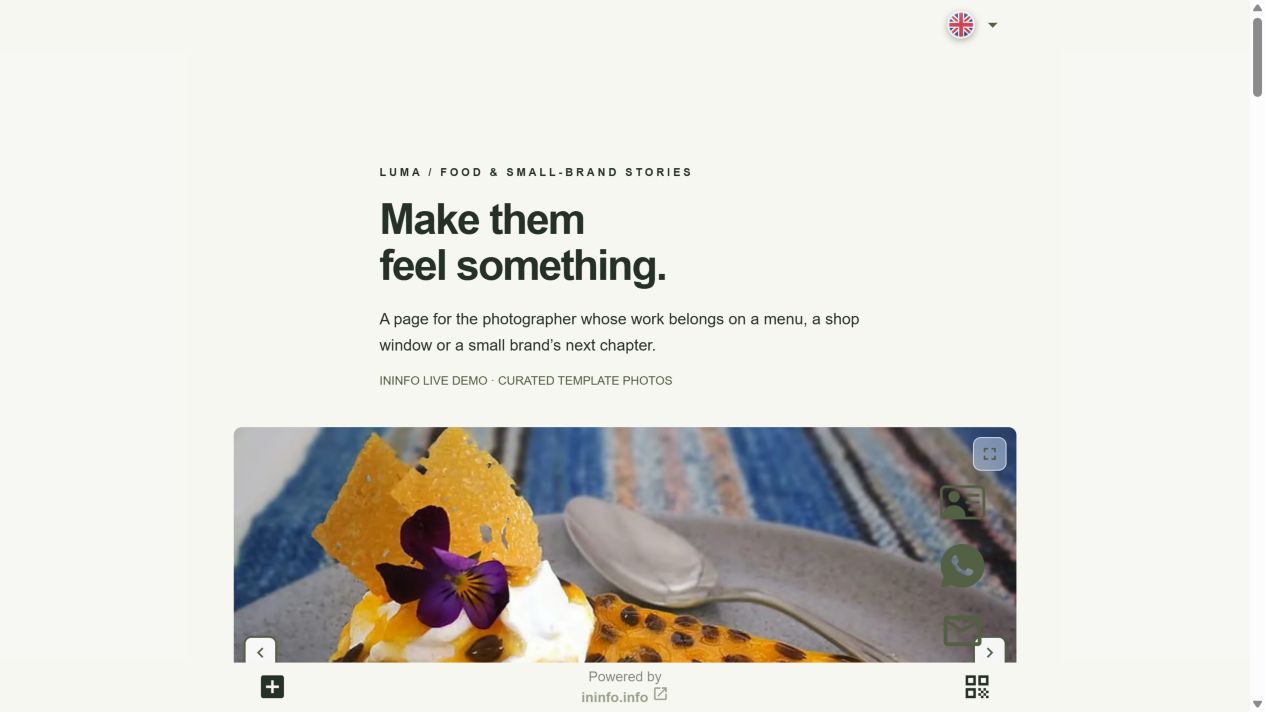
Meet Luma, a fictional photographer website we built in InInfo. Open it and explore the page: large photos lead to services, an explanation of the process, answers to questions and an enquiry form. After sign-up or login, “Create a website from this template” opens your copy of the design in the editor. Replace all its content with your own. Below is an example of what a client might ask through this kind of form.
Start with a ready-made portfolio in the InInfo builder
A ready-made template lets you see the whole future page straight away. Luma already has a colour scheme, headings, photos, services and an enquiry section. The create-website button in this article gives you a separate draft with that design in your InInfo account. It is not published automatically, so you have time to make it your own.
In the editor, replace the name with yours, introduce yourself and say where you work. Remove sections you do not need yet. You could start with photos and a phone number, then return to services and the form when you are ready to say more.
Replace gallery photos and choose a design that suits your work
The InInfo template has galleries for different kinds of photography. Your family portraits, cafe photos or interiors can take their place. Open a gallery in the editor, replace its images and name the section so clients know what they are seeing. Add a short account of the shoot beside it: where it happened, what you wanted to show and how you prepared.
You can also change the background, colours and font in the builder to suit your photographs. InInfo’s mobile preview shows how images and captions fit on a phone. That is particularly useful when clients will arrive from social media.
Add services, prices and an explanation of your shoots
InInfo provides catalog cards with a photo, description and price for your services. In Luma we used them for several shoot options. Open the cards in the editor and enter your terms: the length of a family session, the number of finished photos and whether studio rental is included. If prices depend on the brief, explain that in the description.
Next in the template are work stages and expandable answers to questions. Adapt those too: describe preparation, choosing a location and delivery times. The builder helps bring together what you would normally explain in several messages to a future client.
Set up contacts and the enquiry form in the same editor
The InInfo Contact block can hold a phone number, email or messenger link. Make the buttons float to keep them at the screen edge while someone browses photos. These contacts are already in the template: replace them with your own before publishing and keep the channels you prefer.
The enquiry form is ready too. In the InInfo editor, change questions, remove unwanted fields and choose which answers are required. Ask for a shoot description, preferred date and phone number, for example, while keeping budget optional. You discuss the price and confirm the date personally; the form does not reserve time in your calendar.
Publish in InInfo and share your page on social media and with clients
When your photos, services and contacts are ready, choose an InInfo page address, save and publish. The site can then open at an address such as ininfo.info/your-name. Creating and publishing do not require a bank card; a small InInfo credit remains at the bottom.
Add your page link to your social accounts and send it when clients ask about work or prices. Get the page QR for a business card. You will update photos and prices in the same InInfo builder: as long as the address stays the same, links in social posts, messages and business cards will open the updated page.
Open the ready-made portfolio in InInfo and make it yours
The button below takes you to sign-up or login, then opens the Luma template in the InInfo builder. Start with your name and favourite photos, replace the contacts and fill in other sections at your own pace. Preview the result and publish when you are ready to show clients.
- Click “Create a website from this template” and sign up or log in to InInfo. It opens as your own separate draft in the builder.
- Enter your name, replace gallery images and edit service descriptions. Check the design in mobile preview.
- Enter your contacts and adjust form questions if you want to use it. Remove all demonstration details that do not describe you.
- Choose your InInfo address, save and publish. Open the site on a phone, check contact methods and add the link to your social accounts.
The editor and publishing are free. No coding required.
Before you start
Is it free?
Registration, creating a page and publishing are available without payment or a bank card. Pages have an InInfo credit at the bottom. Check your account for its current features and limits.
What happens when I click the button?
After sign-up or login, a new draft opens from the example. It is not published automatically. Replace the fictional business details and contacts with your own, then save the page.
Can I keep just photos and a contact?
Yes. Remove unwanted sections and start with photos, a few words about yourself and a way to reach you. Add services and a form later.
Does an enquiry reserve a shoot?
No. You receive the client’s preferences and agree the date, price and terms personally.
Check before publishing
What to check before publishing
- The template name, photos, service descriptions and prices have been replaced.
- Floating contacts reach you, and receiving enquiries has been tested.
- You have viewed your published InInfo page on a phone.